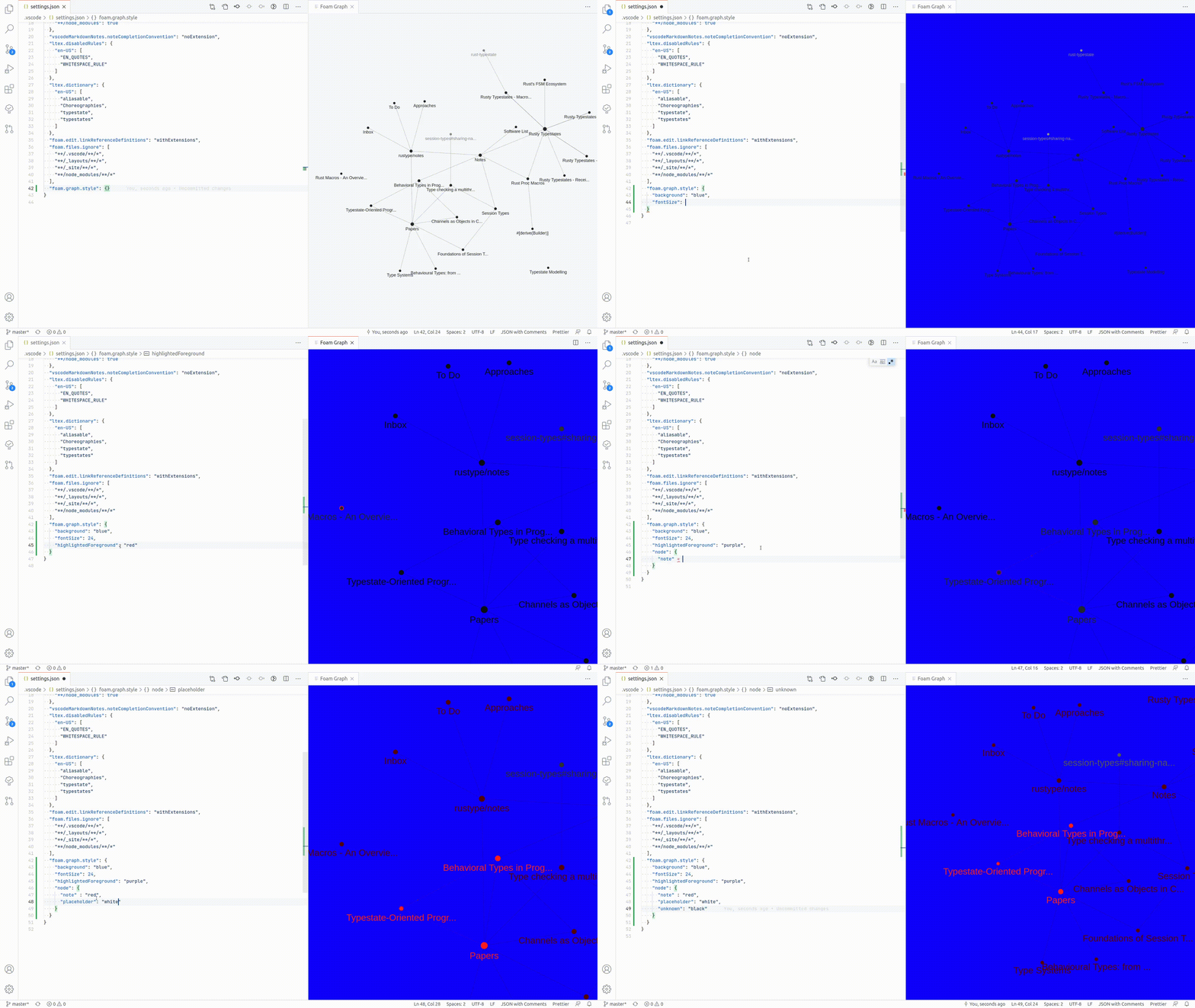
Graph Visualization
The graph view transforms your notes into a visual network, revealing connections between ideas. To open it, run the Foam: Show Graph command.
Files and tags appear as nodes; links between files and file-to-tag relationships are the edges. A node grows in size with the number of connections it has.
The Show Graph command
Section titled “The Show Graph command”- Press
Ctrl+Shift+P/Cmd+Shift+P - Type “Foam: Show Graph”
- Press Enter
You can set up a custom keyboard shortcut:
- Go to File > Preferences > Keyboard Shortcuts
- Search for “Foam: Show Graph”
- Assign your preferred shortcut
Graph Navigation
Section titled “Graph Navigation”With the Foam graph visualization you can:
- highlight a node by hovering on it, to quickly see how it’s connected to the rest of your notes
- select one or more (by keeping
shiftpressed while selecting) nodes by clicking on them, to better understand the structure of your notes - navigate to a note by clicking on it’s node while pressing
ctrlorcmd - automatically center the graph on the currently edited note, to immediately see its connections
Preview Mode
Section titled “Preview Mode”By default, clicking a node opens the source file in the editor. To open the markdown preview instead, enable the foam.graph.navigateToPreview setting:
"foam.graph.navigateToPreview": trueThis gives you a two-panel layout — graph on one side, rendered preview on the other — without a source editor in between. Non-markdown files (attachments, images, etc.) always open in the editor regardless of this setting.
Groups
Section titled “Groups”The Groups panel (top-right of the graph) controls which nodes are visible and how they are colored. It has three parts:
Color by — sets the default coloring strategy for nodes:
None— each node type gets its own colorType— colors by the note’stypefrontmatter propertyDirectory— colors by the directory the file lives in
Built-in types — checkboxes and color dots for tag, attachment, image, and placeholder nodes. Uncheck to hide, click the colored dot to change the color.
Custom groups — rules you define to color (and optionally hide) a subset of notes. Each group matches notes by a property and assigns a color. Click + Add group to create one.
A group matches notes by:
type— exact match on the note’s type (e.g.project)path— substring match on the file path (e.g.journal)tag— exact match on a tag (e.g.daily)title— substring match on the note title- Any frontmatter key — exact match on a custom property
Use /regex/ syntax for pattern matching: e.g. /^2024/ matches paths starting with 2024.
Groups layer on top of the default coloring — last matching group wins. Unchecking a group hides notes that only belong to that group.
Named Views
Section titled “Named Views”Define pre-configured graph views in foam.graph.views. A view named "Default" is applied automatically whenever the graph opens — use it to set your preferred starting configuration.
"foam.graph.views": [ { "name": "Default", "colorBy": "directory", "show": { "tag": { "enabled": false }, "placeholder": { "enabled": false } } }, { "name": "Journal", "colorBy": "directory", "show": { "tag": { "enabled": false }, "placeholder": { "enabled": false } }, "groups": [ { "id": "journal", "label": "path=journal", "color": "#6bcb77", "enabled": true, "match": { "property": "path", "value": "journal" } } ] }]Open a named view via a keybinding in keybindings.json:
{ "key": "ctrl+shift+j", "command": "foam-vscode.show-graph", "args": { "view": "Journal" }}You can also pass a config inline without a named view:
{ "key": "ctrl+shift+g", "command": "foam-vscode.show-graph", "args": { "config": { "colorBy": "type", "show": { "placeholder": { "enabled": false } } } }}View config fields:
| Field | Description |
|---|---|
name | Display name shown in the panel title. Use "Default" to apply automatically on open. |
colorBy | "none", "directory", or "type" |
groups | Array of custom group rules (see Groups section above) |
show | Per built-in type config: { "tag": { "enabled": true, "color": "#ff0000" } } |
background | Background color override |
fontSize | Font size override |
fontFamily | Font family override |
lineColor | Edge color override |
All fields are optional. When both view and config are provided, config is merged on top of the named view.
What’s Next?
Section titled “What’s Next?”With graph view mastery, you’re ready to explore advanced Foam features:
- Wikilinks - Understand bidirectional connections
- Note Templates - Use templates effectively to standardize your note creation
- Tags - Organize your notes with tags
- Daily Notes - Set up daily notes to establish capture routines
Legacy: foam.graph.style
Section titled “Legacy: foam.graph.style”Deprecated. Configure the graph via
foam.graph.viewsinstead (see above). Define a"Default"view to replace any settings you have infoam.graph.style.
foam.graph.style still works and is applied as the base layer before any view config:
"foam.graph.style": { "background": "#202020", "fontSize": 12, "fontFamily": "Sans-Serif", "lineColor": "#277da1", "lineWidth": 0.2, "particleWidth": 1.0, "highlightedForeground": "#f9c74f", "node": { "note": "#277da1", "placeholder": "#545454", "tag": "#f9c74f" }}